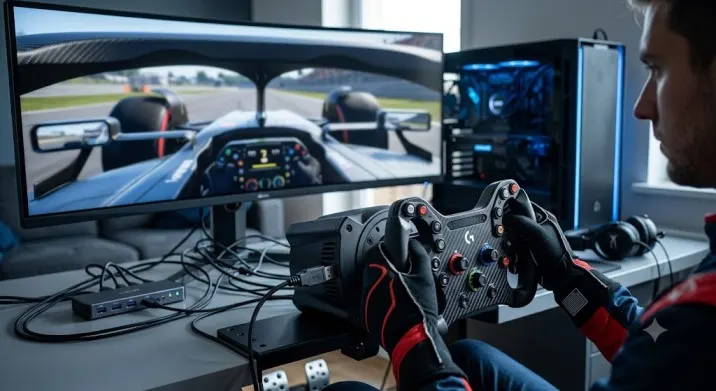
You plug in your racing wheel, fire up F1 2026, and nothing happens. The game ignores your wheel completely. Or worse, it detects it but the force feedback feels wrong. The car pulls to one side. The wheel fights you instead of helping you.
I have been there. It is frustrating. But the fix is usually simple. Here is a complete guide based on what actually works.
Before You Start: Check Compatibility
Not every wheel works with every game. F1 2026 is no exception.
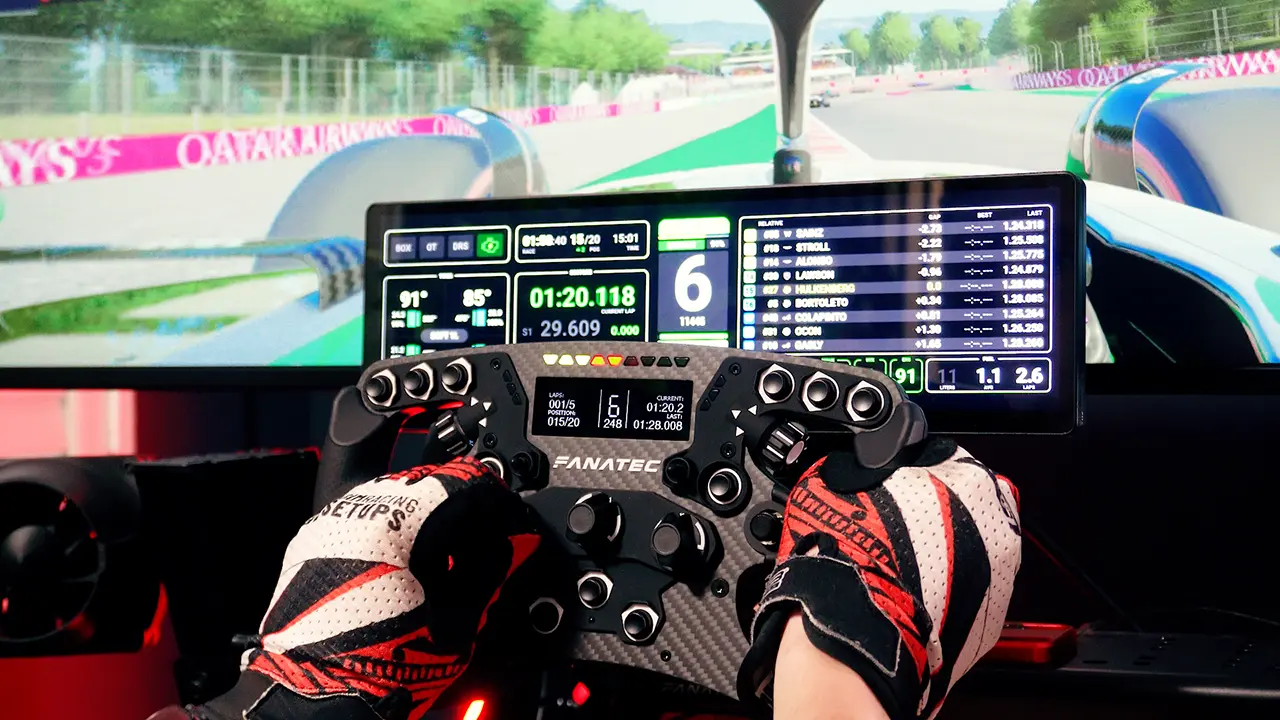
If you are on Xbox, check that your wheel is officially supported. Some wheels, like the Thrustmaster T90, Ferrari 458 Spider Racing Wheel, and Hori Racing Wheel Overdrive, had a known bug where they could not reach 100% rotation in-game.
Read Also: The 2026 Boost Button: How Drivers are Gaming the New Energy Limits?
This was fixed in patch v1.24, but you need to make sure your game is updated. If you are on PC, some wheels may not be recognised because of anti-cheat software. EA has specifically noted that EA anti-cheat can interfere with wheel connections on PC . If you are having issues, check your anti-cheat settings.
If you are on PlayStation, make sure your wheel firmware is up to date. Newer wheels like the Asetek Forte Formula Pro have been added to the supported list in recent patches.
Pro tip: Always check the official EA support page for your specific wheel model before assuming it is compatible.
The Most Common Fix: Update Your Firmware
This is the fix that solves most wheel problems. Manufacturers release firmware updates to improve compatibility with new games.
For Fanatec users: The Fanatec app v1.5.1.2 added support for F1 2026's UDP format . But some users reported issues with newer firmware. The solution for some was to revert to an older driver version.
One user found that installing the much older Fanatec driver 456 fixed their wheelbase issues . Another user had to completely reinstall Windows to get the old app version working . If your wheel worked in older F1 games but not F1 2026, try rolling back your firmware.
For MOZA users: The MOZA R9 V3 is a popular choice for F1. But users have reported that the wheel is not centred correctly in F1 2025 and 2026 . The fix is simple: calibrate the centre position in the MOZA Pit House software . There is a "centre" button that resets the wheel's neutral position.
For Asetek users: The RaceHub 4.4.7 app specifically added "improved compatibility" with the F1 2026 Season Pack . If you have an Asetek wheelbase, update your RaceHub software and check for new firmware.
General advice: Always update your firmware before you even launch the game. Do not assume your wheel is ready out of the box.
In-Game Settings That Actually Matter
The F1 games have a long history of being fussy with wheel settings. Here is what you need to check.
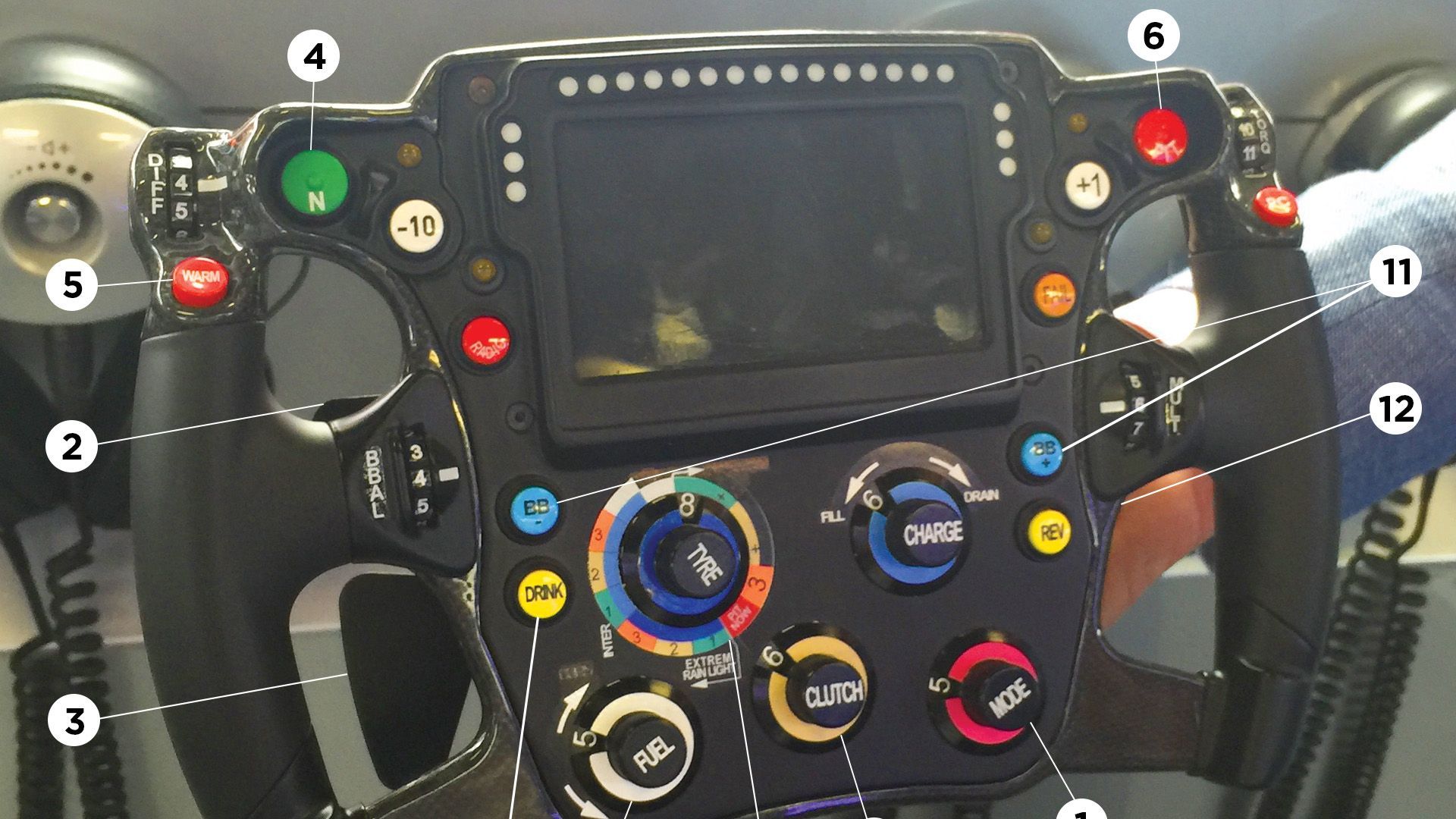
Check Your Device Preset
When you go into the game's control settings, you will see a preset selection at the top. By default, it is probably set to "Gamepad." You need to switch it to "Wheel" or the specific name of your wheel model . If you do not see your wheel in the list, the game has not detected it.
You Must Also Like: History of Formula 1 Rules: How Regulations Shaped the Sport
What to do: Go to Settings > Controls > Preset. If your wheel is not listed, restart the game with the wheel already connected. Do not plug it in after the game has started .
Wheel Rotation Settings
The maximum wheel rotation you can set in-game is a matter of preference, but there is a consensus among experienced players. Most recommend 310 degrees for F1 . This gives you a quick steering response without being twitchy. Some prefer 360 degrees. But 310 is a solid starting point.
Important: Set dead zones in your wheel's native software, not in the game. In-game dead zones can introduce input lag .
Force Feedback Settings
The default force feedback settings in F1 games are often too strong or too weak. Here is a starting point that works for most wheels:
-
Force Feedback Strength: 100%. Anything higher causes clipping (the signal maxes out and you lose detail) .
-
Wheel Damper: 1. A low damper setting keeps the wheel responsive .
-
On-Track Effects: Keep this on to feel kerbs and road texture. It helps on street circuits .
-
Stop hitting the kerbs too hard: If your wheel is shaking violently over kerbs, you are probably hitting them too aggressively. Adjust your driving line before reducing the FFB.
For specific wheel brands, here are recommended starting points:
| Wheel Brand | FFB Strength | Notes |
|---|---|---|
| MOZA R9 | 65% (in Pit House), 50 (in-game) | Set Road Sensitivity to 50% |
| Simagic Alpha EVO | 60% (Overall), 75 (in-game) | Natural Damper 25%, Inertia 20% |
| Fanatec DD | Start at 100, drop to 85-90 if clipping | Check for clipping in tight sections |
What If Nothing Works?
Sometimes the problem is not your settings. It is a conflict.
Disconnect other controllers. If you have a gamepad plugged in, the game might default to it. Before you launch F1 2026, disconnect all other controllers from your console or PC .
Restart your console. A full shutdown (not just sleep mode) clears the cache and resets the USB drivers. This often fixes detection issues .
Check for loose cables. This sounds obvious, but it happens. Make sure the USB cable is fully plugged in. If you are using a USB hub, try plugging the wheel directly into the console or PC. Hubs can cause power and data issues .
Check the wheel's internal calibration. Some wheels lose their centre position after a heavy impact. One user reported that after a hard crash, their wheel was 90 degrees off-centre. The fix was to manually spin the wheel to full lock in both directions to recalibrate it.
Quick Troubleshooting Checklist
| Problem | Likely Fix |
|---|---|
| Wheel not detected in game | Update firmware. Check EA anti-cheat on PC. Disconnect other controllers. |
| Wheel detected but feels wrong | Set dead zones in hardware software, not in-game. Check rotation and FFB settings. |
| Wheel not centred | Calibrate centre in manufacturer software (MOZA Pit House, Fanatec app). |
| Force feedback clipping | Reduce FFB strength to 85-90%. |
| Xbox spring wheels limited rotation | Update to v1.24 patch . |
| Asetek wheel not working | Update RaceHub to v4.4.7 . |
The good news is that most wheel issues in F1 2026 are fixable. The bad news is that they often require a bit of patience and some time in the menus.
Start with the firmware update. That solves the vast majority of problems. Then check your in-game settings. And if you are still stuck, disconnect everything else and restart from scratch.